Separate working copies
Development work uses Git branches and working copies, with changes and review findings brought back together.


Hire agents for the roles you need. A coordinator brings their work together across AI providers, with model and effort choices guided by policies you control.
Free to start. Your AI tools use your own sign-ins.
Follow a sample website project from your brief to the coordinator, developer, reviewer, and writer. Explore their handoffs and make the next call.
Illustrated sample. No real AI runs, sign-in, or saved changes.
You ask for a clear services page. Development Manager plans the work. Website Supervisor coordinates a developer, reviewer, and writer. The team prepares a draft and review notes, then brings the decision back to you.
Sample conversation: “Where are we with the website?” — “The page draft is ready. The reviewer is checking the links and layout before we send it back to you.”
This is an illustrated website example, not the desktop app. AI tools and approval rules in the app depend on your setup.
Start as you would with a human team: choose roles, set responsibilities, and explain the result you want. Plenipo connects those roles to your AI tools.
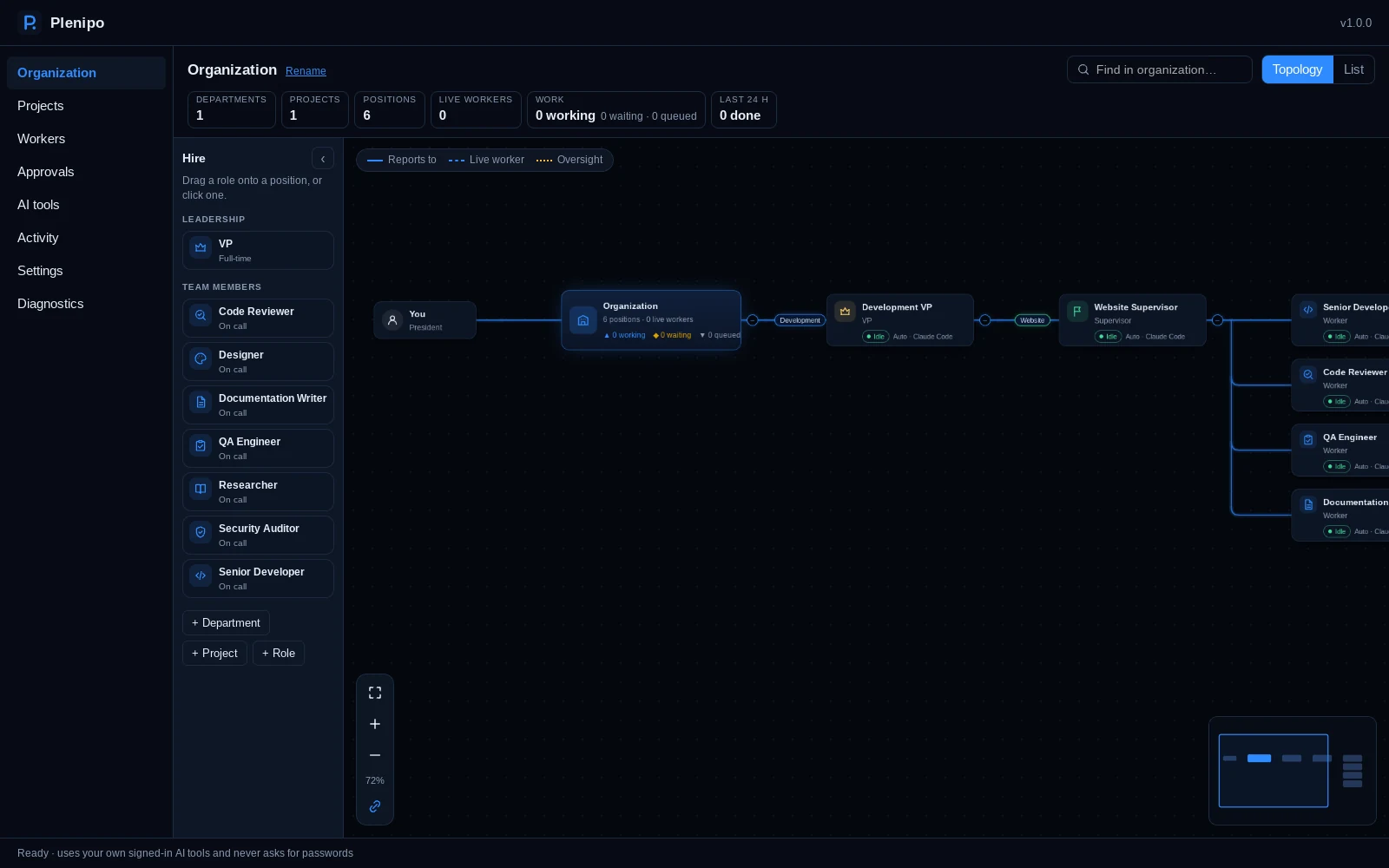
Start with Plenipo's suggested role policies. Automatic agents use those policies to select from your available models, with an explanation of the choice.
Adjust model choices and reasoning effort for your organization, department, role, or agent. Set first choices, backups, and providers to exclude. Where you leave effort unset, the model or AI tool's default applies.
How model choices work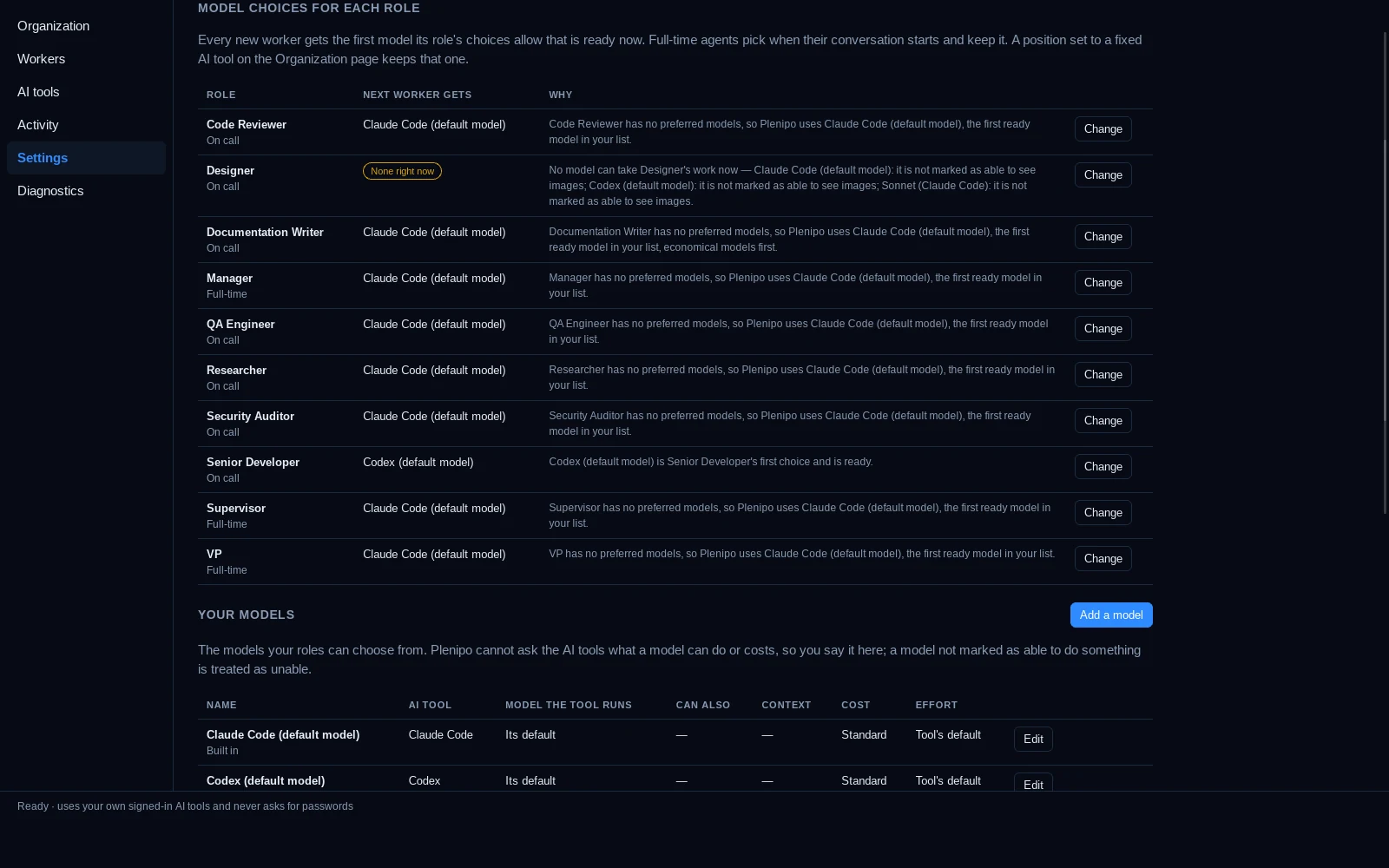
Give each role clear permissions and project folder limits.
Actions set to ask wait for your approval. See what a worker wants to do, then approve or deny the request.
Learn about permissions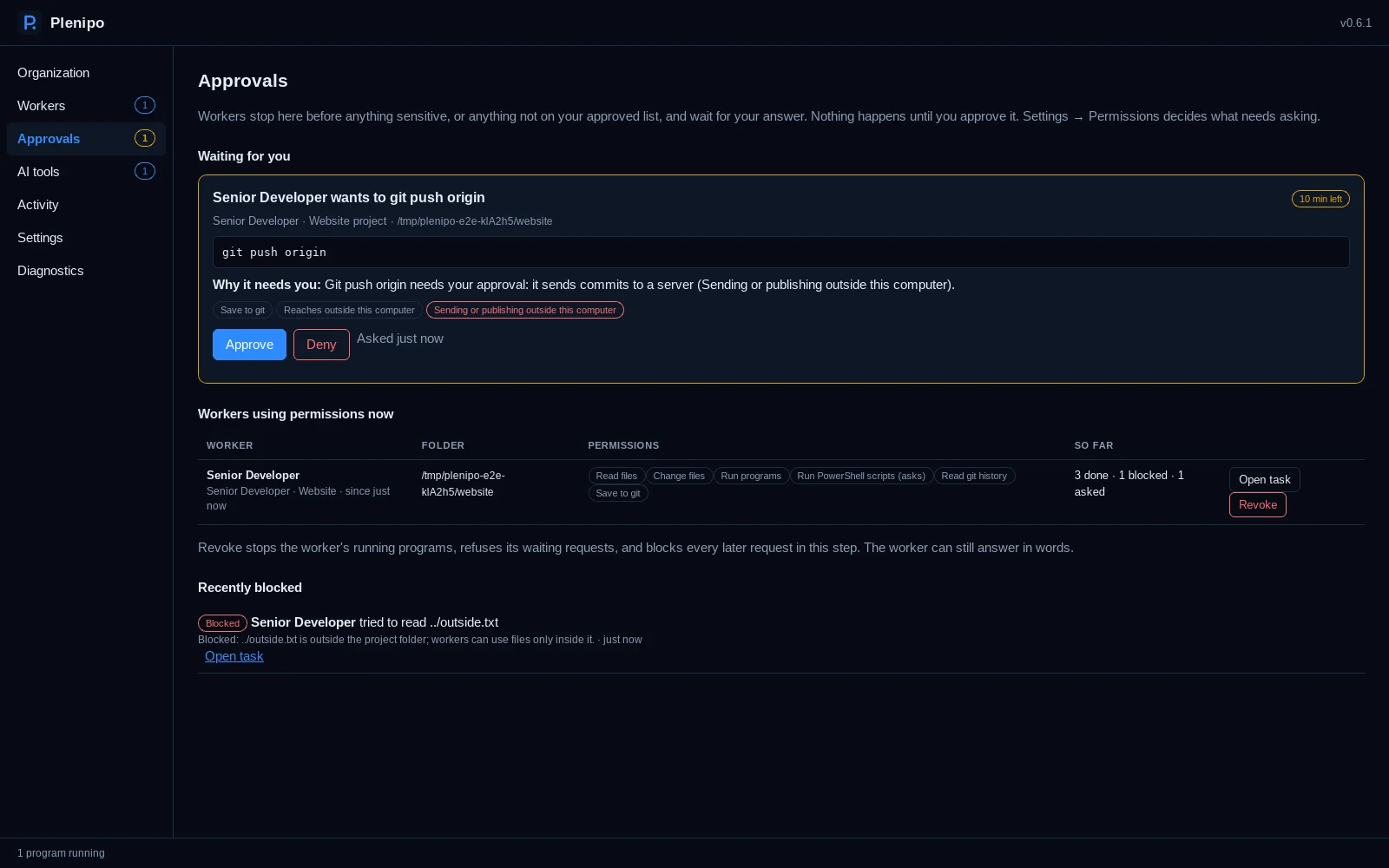
Follow your team's work through its activity, results, and approvals.
Your activity record stays on your PC, so you can return to the details behind a result.
Explore the product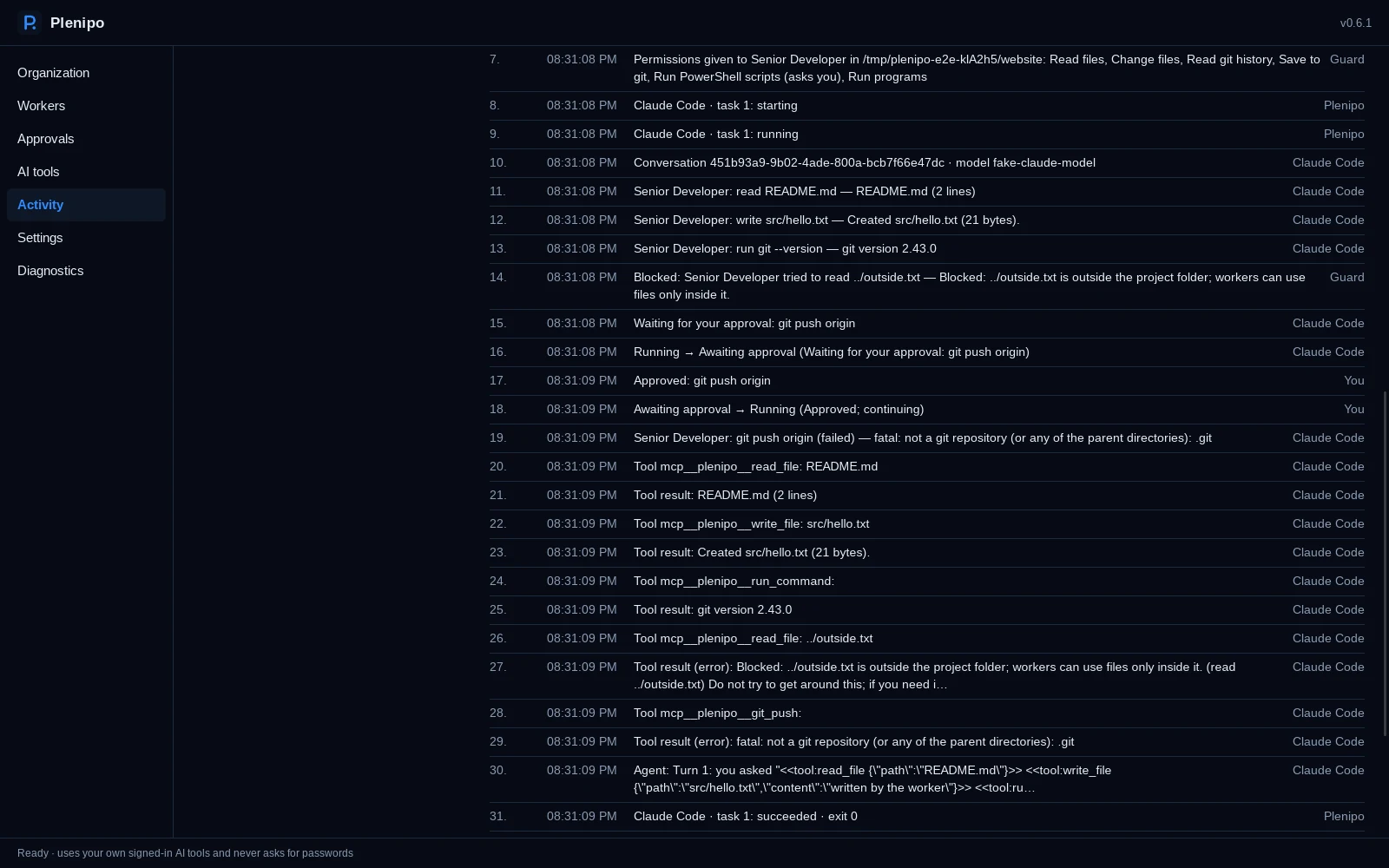
You set the outcome. The coordinator connects the work.
FOR EXAMPLE: BUILD A SERVICES PAGE
Give your supervisor a brief: “Build a services page for our website.” Hire a developer to implement it, a reviewer to check it, and a writer to document it. The supervisor coordinates their tasks and brings back the changes and findings.
Your policies could put the developer on Claude Code and the reviewer on Codex, with a different effort level for each. The roles stay the same when you change the model choices. You review the result and decide what happens next.
Illustrative workflow. Available models and actions depend on your connected tools and permissions.
Bring your supported AI tools together, using your own sign-ins.
 Claude CodeAnthropic
 CodexOpenAI
 GrokxAI
 KimiMoonshot AI
Also works with Ollama cloud models for text conversations.
A coordinator delegates to the team's roles and receives their results. Workers can use different AI providers within the same project.
For a second perspective, set a review policy to prefer or require another provider. Permissions, approvals, and the activity record stay under your control on your PC.
AI requests still go to your selected AI company. Its plan and usage limits apply.
Explore supported AI tools
Follow the code, run commands, and inspect the result alongside your agents.
Development work uses Git branches and working copies, with changes and review findings brought back together.
Open your own terminal on your PC or a configured Linux or Unix server, beside the team's work.
Follow a worker's file changes in the read-only Watch view. Streaming detail depends on the AI tool.
Inspect changes, test results, approvals, and task history before deciding the next step.
The current release is free and unrestricted.
Free and Pro editions are planned.
| Free Planned | Pro Planned |
|---|---|
| 1 department · 1 project | Unlimited departments and projects |
| 3 workers at a time | Unlimited workers |
| Development department | Development and business departments |
| All supported AI tools | All supported AI tools |
| All permissions and safety controls | All permissions and safety controls |
Planned edition limits are not active in v1.18.1.
Planned Pro pricing is $9/month or $99/year.
Read the edition plans
A fix to Phase 16's paid AI keys, found by the owner on Windows: the place to add a key was hard to find, and a key needed a spending cap first. Plenipo by 8 West Ventures, LLC.
Paid AI keys still work only while Settings → Switches → Let workers use paid AI keys is on, and only for positions you list them for. Nothing else changed. This update does not change the Ledger.
Download Plenipo_1.18.1_x64-setup.exe below and run it, or let Plenipo install the update. It is a per-user install with no admin rights needed, signed as 8 West Ventures, LLC.

Windows 11 · x64 · v1.18.1
Read the terms of service and privacy statement before using Plenipo.
Release notes and other downloadsYou add an AI agent to a role in your organization, with responsibilities, instructions, and permissions. Like staffing a team, you decide what the role is there to do and who it reports to. A supervisor coordinates the work; the connected AI model performs it.
Automatic agents follow model policies. Plenipo supplies starting role preferences, such as preferring another provider for code review. You can adjust choices for the organization, department, role, or individual agent, or fix an agent to a particular tool and model. Selection considers your rules and tool availability, and records why a model was chosen. Supported effort levels follow your settings, then model or tool defaults.
Yes. The current release is free and unrestricted. Free and Pro editions are planned for a future release, with Pro planned at $9/month or $99/year. Your AI tools use your own accounts; their subscriptions and usage limits are separate.
No. Plenipo runs on your PC and keeps its permissions, approvals, and activity record locally. AI requests go to the AI companies you choose, so supported cloud tools need an internet connection.
The current installer supports Windows 11 on x64 PCs. Check the latest release for available downloads and release notes.
A worker can do the things allowed by its role's permissions and project folder limits. Actions set to ask wait for your approval; blocked actions stay blocked. Optional settings can allow sending, buying, or signing in without asking on allowed websites. These settings start off. You can review requests, revoke permissions, take over, or stop work from the app.
Yes. Plenipo is source-available under the Elastic License 2.0. You can read the source, build it, and change it for your own use, subject to the license terms.